On this page
settings
Appearance Options
Customize application appearance to your liking.
Proxygen allows customizing its fonts and color themes. You can find these options under the Appearance tab.
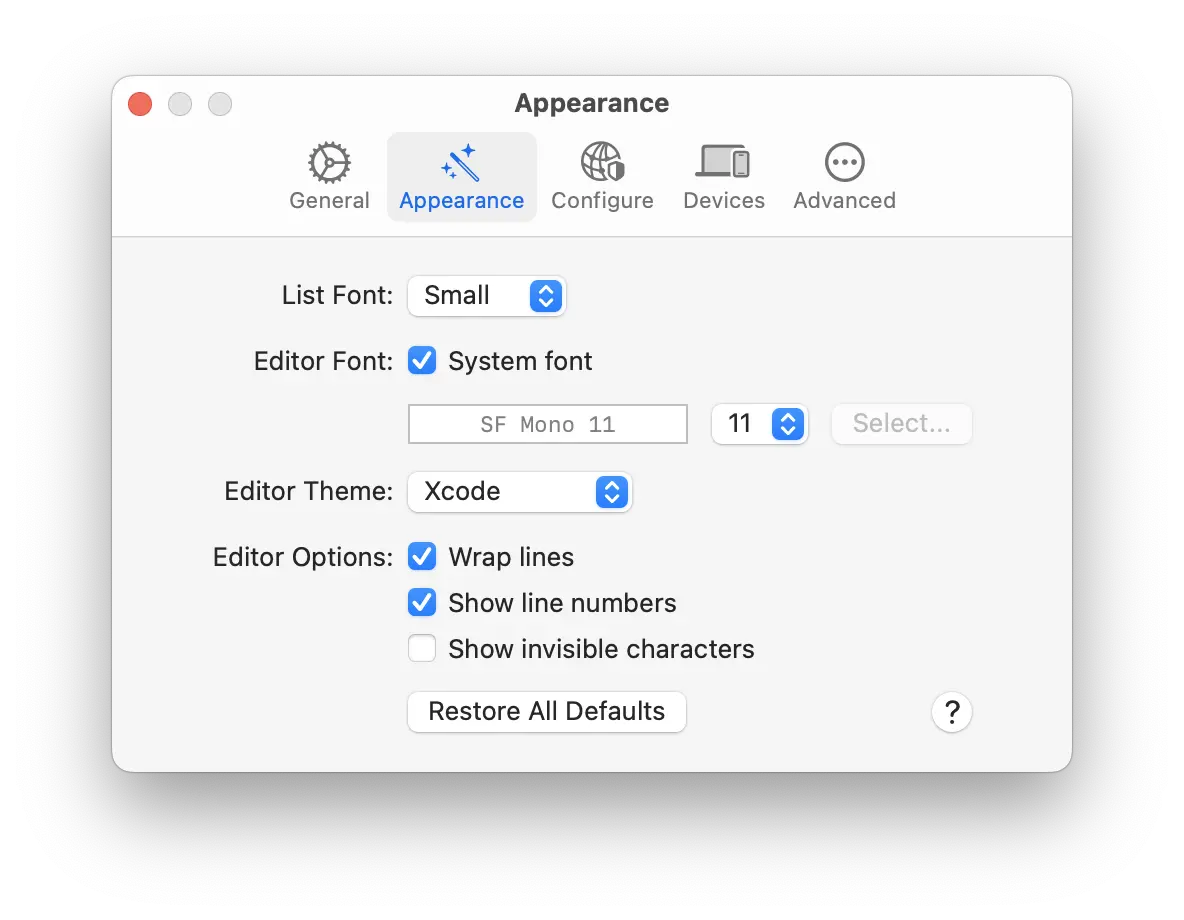
Editor options
- List Font lets you select the font size for message history in History and Sockets tools.
- Editor Font lets you select the font and size for message editors. Click Select… to pick any custom font. This selection immediately update all editors across the Proxygen app.
- Editor Theme offers a selection of color themes for the message editor. More themes will be added in upcoming versions.
- Editor Options lets you customize the behavior of all message editors by toggling line wrapping, line numbers and invisible characters.
Other options
- Show menu bar item shows the Proxygen menu bar item, which displays current proxying state and lets you enable the proxy and system proxy configuration.
- Show icons in menu items shows the icons next to the items in Proxygen’s menus.
- Show instructions for tools shows the introductory instructions in tool windows. Turn this off once you know your way around the tools.
You can always reset all settings to defaults by clicking Restore All Defaults.