MCP
Give AI agents access to Proxygen.
The Proxygen MCP server exposes Proxygen’s tools to AI agents through the Model Context Protocol. Once connected, an agent like Claude Code, Gemini CLI or Codex can inspect traffic, modify requests, manage rewrites and scripts, run tests, and configure the proxy — all against your live Proxygen document.
Overview
Proxygen’s MCP server runs on localhost and is reached through a small bridge binary bundled with the app. It requires a per-session authentication token so only agents launched from your machine can use it.
The MCP is designed to prepare a workspace for you to inspect and continue from, not to replace the UI. When an agent creates an editor, a rewrite rule, a test, or a transform recipe, the result is visible in the corresponding Proxygen tool so you can review, adjust, and keep working with it.
Typical uses:
- Ask an agent to explore traffic, summarize an API, or pick out interesting requests
- Have an agent draft rewrite rules or scripts based on a natural-language description
- Generate test configurations and payloads from example requests in history
- Extract values from responses across many messages
- Reproduce or modify requests in an editor
- Configure TLS interception, history filters, and recording settings
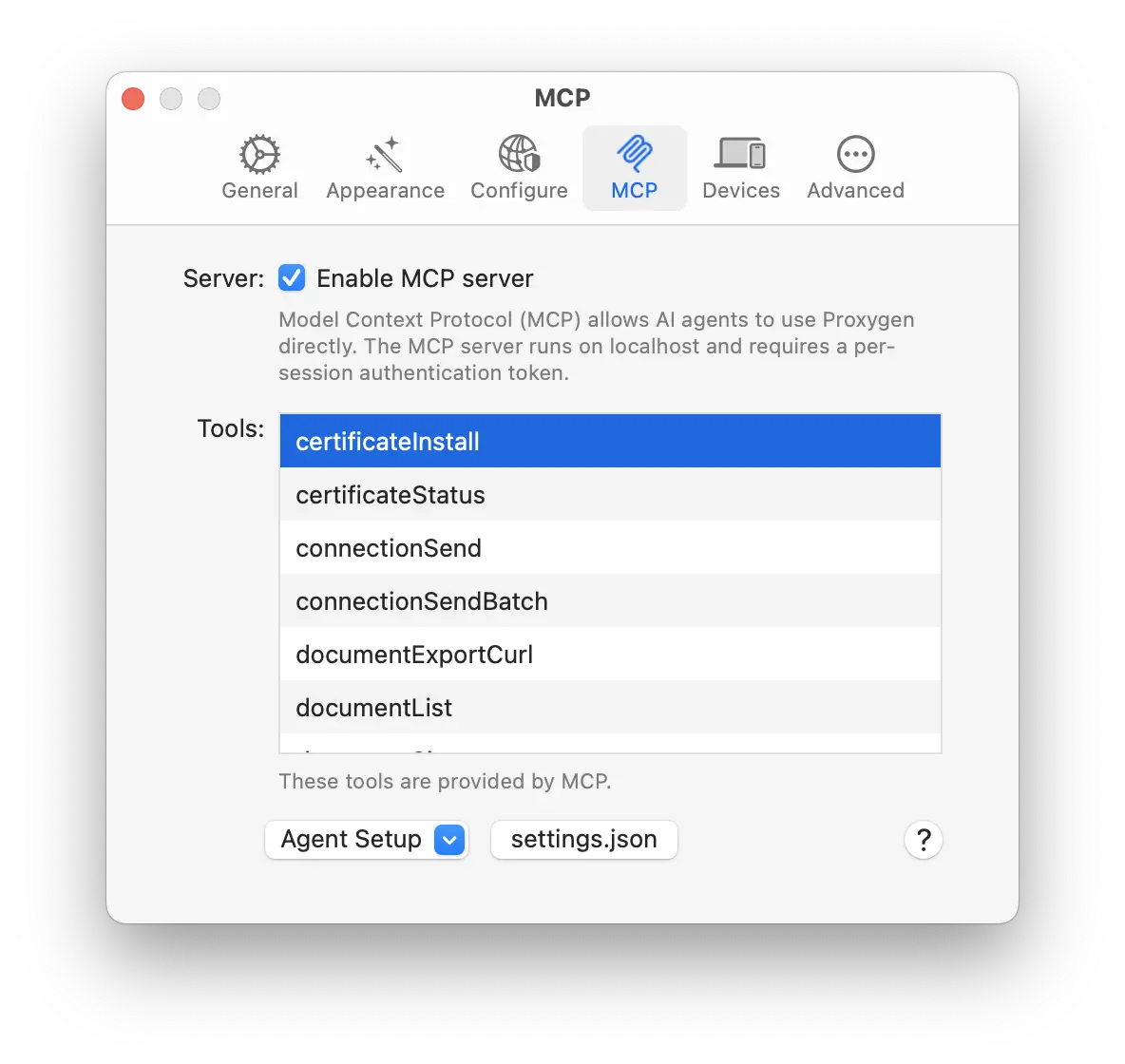
Enable the server from Preferences → MCP by turning on Enable MCP server.
Secrets
Everything a tool returns ends up in the agent’s context, and usually in whatever transcript logging that agent keeps. Proxygen therefore replaces credentials with a fingerprint before they leave the app.
An Authorization header comes back as Bearer <redacted:sha256=ab12cd34>. The surrounding structure is preserved because it is not itself secret: the authentication scheme stays visible, Cookie headers keep their cookie names, and Set-Cookie keeps its Path, Domain and HttpOnly attributes. This is applied to request and response headers, cookie values, variable values, stored authentication credentials, and secret-looking URL query parameters such as ?api_key=.
The fingerprint is stable, so an agent can still answer the question it usually needs answered: two requests showing the same fingerprint are using the same token, and different fingerprints mean different tokens. It is a salted SHA-256 prefix and cannot be turned back into the original value. The salt is generated once per installation, so fingerprints are comparable within your machine but not across machines.
Searching and filtering match the redacted text as well. This matters more than it first appears: if a rule were matched against the real value, an agent could use it as a yes/no probe — a regex on a URL or header, repeated — and recover a secret one question at a time without the value ever being returned. Matching what the caller can already see closes that off, and searching for a fingerprint becomes the way to find every message using one credential.
Redaction is controlled by Redact secrets from tool calls in Preferences → MCP, which is on by default. Tools accept a revealSecrets parameter to return values in the clear, and it only works once you turn that preference off; while it is on the tool returns an error telling the agent to ask you first. This is deliberate — without the preference, an agent could simply opt itself out of redaction.
Message bodies are not redacted. A token in a JSON response body, such as an OAuth access_token, still reaches the agent in full. Redaction covers the structured places credentials live, not arbitrary payload content.
Large bodies
Bodies are usually the bulk of what an agent reads. Tools that return one accept bodyMaxSize to cap how much comes back, bodyOffset to choose where the window starts, and bodyJsonPath to project a single value out of a JSON body inside Proxygen instead of returning the body at all.
bodyOffset makes it possible to read the middle of a large body without first pulling in everything before it. The response reports bodyOffset and bodyLength for the range actually returned, plus bodyTotalSize for the whole body, so the agent can work through it in pieces. Windows that fall in the middle of a multi-byte character are nudged to the nearest character boundary, and the reported range reflects that. The sockets tools use messageMaxSize, messageOffset and messageJsonPath for the same thing.
Setting up agents
Open Preferences → MCP. The Agent Setup popup and the settings.json button generate the configuration needed to register Proxygen with common agents.
Registration command
The popup offers one-line registration commands for three agents. Selecting an entry copies the command to your clipboard; paste it into a terminal to register Proxygen with that agent.
-
Claude Code
claude mcp add proxygen --transport stdio -- <path-to-proxygen-mcp> -
Gemini CLI
gemini mcp add proxygen <path-to-proxygen-mcp> -
Codex
codex mcp add proxygen -- <path-to-proxygen-mcp>
The command shown in Proxygen contains the absolute path to the bundled proxygen-mcp bridge binary.
JSON configuration
For agents that are configured through a JSON settings file rather than a CLI command, use the settings.json button. It copies a ready-to-paste snippet to your clipboard:
{
  "mcpServers": {
    "proxygen": {
      "command": "/path/to/Proxygen.app/Contents/MacOS/proxygen-mcp"
    }
  }
}
Merge this into your agent’s MCP settings file.
Examples
Once Proxygen is registered with an agent, you can drive it with natural language. The examples below show the kinds of requests the tools are designed to handle — the agent picks the right tools and parameters and leaves results visible in Proxygen for you to continue from.
Exploring and summarizing traffic
- “Give me a summary of the last hour of history — which hosts, status codes, and content types are present.”
- “Build a sitemap of everything under
api.example.comand highlight endpoints that only appear once.” - “Look through messages 400–650 and flag any request that took longer than 2 seconds, adding a note with the elapsed time.”
- “Find every 5xx response in the last 200 messages, group them by host, and show me the first example of each.”
Searching and extracting values
- “Search history for any response whose JSON body contains
$.user.emailand list the unique values.” - “In messages 1200–1500, extract
$.data[*].idfrom each JSON response and give me the combined list with duplicates removed.” - “Find every request with an
Authorization: Bearerheader and capture the token using a regex — save the results as a table.” - “Pull
//book/title/text()from every XML response oncatalog.example.comusing XPath.” - “Look at the SSE channel for
stream.example.comand extract theeventfield from every message.”
Modifying and replaying requests
- “Take message 842, open it in an editor, change the
user_idquery parameter to42, and send it.” - “Create an editor for a POST to
https://api.example.com/loginwith a JSON body containing{{username}}and{{password}}from the current environment, then send it.” - “Reproduce message 318 ten times in parallel using
sendBatchand tell me the status code distribution.” - “Export message 512 as a curl command so I can share it.”
Rewrites, scripting, and interception
- “Create a rewrite rule that adds
X-Debug: 1to every request to*.staging.example.com.” - “Mock
GET https://api.example.com/feature-flagsto return{"beta": true}with status 200.” - “Write a script that runs onResponse for
api.example.com, logs any response where$.erroris present, and sets a flag on the history message.” - “Turn on request interception for
POST *.example.com/checkoutonly, and show me what’s currently in the queue.” - “Forward the first pending intercept but replace the body with the contents of message 902.”
Tests and transforms
- “Create a test collection from message 611 that substitutes
§email§with the values[email protected],[email protected], and an empty string, then run it.” - “Poll the running test every few seconds until it finishes and summarize the failures.”
- “Take the
Authorizationheader value from message 750, base64-decode it, split on:, and give me the username.” - “Save a transform recipe that gzip-decompresses input then pretty-prints it as JSON, and call it
decode-gzip-json.”
Cookies, variables, and configuration
- “List cookies for
example.comand delete any whose name starts with_tmp.” - “Set
apiTokenin the current environment to theaccess_tokenfield from the response of message 988.” - “Enable TLS interception for
*.example.combut excludetelemetry.example.com.” - “Add a host resolution that points
api.example.comat127.0.0.1so I can hit a local server.” - “Check whether the Proxygen CA is trusted, and install it if it isn’t.”
Tools
The MCP server exposes the following tools, grouped by area.
Authentication
| Tool name | Description |
|---|---|
authenticationList |
List authentication rules with their match conditions and credential type. |
authenticationGet |
Full details of an authentication rule, including its credentials. Credentials are fingerprinted unless revealSecrets is set. |
authenticationCreate |
Create an authentication rule that applies Basic, API key, Bearer, JWT, Digest or NTLM credentials to matching requests. |
authenticationUpdate |
Modify an existing authentication rule. |
authenticationDelete |
Delete authentication rules by index. |
Certificate
| Tool name | Description |
|---|---|
certificateStatus |
Check whether the Proxygen CA is installed and trusted for TLS interception. |
certificateInstall |
Install the Proxygen CA into the login keychain and set trust settings. |
Channel
| Tool name | Description |
|---|---|
channelList |
List active TCP connections currently passing through the proxy (same data as the Connection Monitor panel). Snapshot at call time. |
Console
| Tool name | Description |
|---|---|
consoleRead |
Read log items from the Console tool: proxy status, connection events, intercept/script matches, errors. Filter by level or search text. |
consoleClear |
Delete all items from the Console log. |
Cookie
| Tool name | Description |
|---|---|
cookieList |
List cookies from the project’s cookie jar with optional domain/name filtering. |
cookieGet |
Get a single cookie from the project’s cookie jar by UUID. |
cookieSet |
Create or update a cookie in the project’s cookie jar. Omitted optional fields revert to defaults when updating. |
cookieDelete |
Delete specific cookies by their UUIDs. |
cookieClear |
Delete all cookies from the project’s cookie jar. |
Diff
| Tool name | Description |
|---|---|
diffGet |
Compute a text diff between two items (history messages or socket messages) and stage them in Proxygen’s Diff tool. |
Document
| Tool name | Description |
|---|---|
documentList |
List all open Proxygen projects with their IDs and names. Pass a returned id as documentId on other tools to target that project. |
Editor
| Tool name | Description |
|---|---|
editorCreate |
Create a new editor with a prepared HTTP request. Prefer this over send when the request should stay visible in the UI. |
editorCreateFromHistory |
Create an editor from a history message. |
editorGet |
Full details of an editor, including request and last response. |
editorUpdate |
Modify an existing editor’s request. |
editorSend |
Send the request in an editor and return the response. The response is also visible in the Editor’s response pane. |
editorList |
List all open editors in the project. |
editorDelete |
Delete one or more editors. |
History
| Tool name | Description |
|---|---|
historySummary |
Quick overview of the project’s captured HTTP history: counts, hosts, status codes, content types, time range. |
historyList |
List history messages with filtering, sorting, and pagination. |
historyGet |
Full details of a single history message, including request and response headers and bodies. |
historySearch |
Advanced rule-based search across history messages. Supports JSONPath and XPath positions in addition to the usual string/regex/wildcard matches. |
historyExtract |
Extract values from matching messages using JSONPath, XPath, or regex capture groups. |
historyUpdate |
Set flag and/or notes on history messages, either by UUIDs, numbers, or filter. |
historyFilterSet |
Configure the history view filter so findings are surfaced in the UI. Pass reset: true to clear the filter. |
historyDelete |
Delete specific history messages by UUID or number. |
historyClear |
Clear all history messages from the project. |
historySitemap |
Hierarchical URL tree grouped by host and path, useful for discovering endpoints. |
historyExportCurl |
Export a history message as a curl command. |
Host resolution
| Tool name | Description |
|---|---|
hostResolutionList |
List custom host-to-IP overrides. Host patterns support * and ?; first match wins. |
hostResolutionSet |
Create or update a hostname resolution. Matched by host, so an existing entry with the same host is replaced. |
hostResolutionDelete |
Delete hostname resolutions by their host values. |
Intercept
| Tool name | Description |
|---|---|
interceptList |
List requests and responses paused in the Intercept queue waiting to be forwarded or dropped. |
interceptGet |
Get full details of a pending intercepted message, with parsed request or response headers and body. |
interceptForward |
Forward one or more pending intercepts to their destination, optionally replacing the raw message for a single intercept. |
interceptDrop |
Drop pending intercepts so they never reach their destination. |
interceptEnableSet |
Enable or disable interception of requests and responses. |
interceptFilterSet |
Configure the Intercept filter (rules and hosts) so only matching messages pause in the queue. |
Proxy
| Tool name | Description |
|---|---|
proxyStatus |
Current proxy state, configured listeners, and active connection count. |
proxyStart |
Start the proxy listeners. |
proxyStop |
Stop all proxy listeners. |
proxyConfigureTls |
Configure which hosts have TLS intercepted (MitM). Supports wildcards. |
proxyConfigureWrite |
Configure what traffic is written to history, including content type filtering. |
Rewrite
| Tool name | Description |
|---|---|
rewriteCreate |
Create a rewrite rule that modifies requests, modifies responses, mocks, or drops traffic. |
rewriteList |
List all rewrite rules in the project. |
rewriteGet |
Full details of a rewrite rule, including match conditions and actions. |
rewriteUpdate |
Modify an existing rewrite rule. |
rewriteDelete |
Delete rewrite rules by index. |
Script
| Tool name | Description |
|---|---|
scriptCreate |
Create a JavaScript script that runs on matching proxy traffic (onRequest, onResponse). |
scriptList |
List all scripts with match conditions and enabled state. |
scriptGet |
Full details of a script, including source code. |
scriptUpdate |
Modify an existing script. |
scriptDelete |
Delete scripts by index. |
Send
| Tool name | Description |
|---|---|
send |
Send an HTTP request directly, bypassing the proxy and leaving no artifact in the project. Use editorCreate + editorSend instead when you want the request to be visible in the UI. |
sendBatch |
Send multiple HTTP requests concurrently with configurable parallelism. |
Show
| Tool name | Description |
|---|---|
show |
Bring a Proxygen UI surface to the front and optionally select a specific item inside it. |
Sockets
| Tool name | Description |
|---|---|
socketsSummary |
Overview of WebSocket and SSE channels and messages in the project. |
socketsList |
List socket messages with filtering and sorting. |
socketsGet |
Full details of a single socket message. |
socketsSearch |
Advanced rule-based search across socket messages. |
socketsExtract |
Extract values from matching socket messages using JSONPath, XPath, or regex. Supports combining or collectioning results. |
socketsUpdate |
Set flag and/or notes on socket messages. |
socketsFilterSet |
Configure the Sockets view filter so findings are surfaced in the UI. |
socketsDelete |
Delete specific socket messages by UUID. |
socketsClear |
Clear all socket channels and messages from the project. |
Test
| Tool name | Description |
|---|---|
testList |
List all test collections, tests, and requests in the project. |
testCreate |
Create a test configuration (not run). Uses §placeholder§ markers in the raw request for payload substitution (distinct from {{variable}} environment variables). |
testGet |
Details of a test collection, its tests, requests, and configuration. |
testRun |
Run a test by collection ID. |
testStatus |
Poll status of the current test run: progress, pass/fail counts, elapsed time. |
testResults |
Detailed paginated results from the current or last test run. |
testStop |
Stop the currently running test. |
testDelete |
Delete test collections by UUID. |
Transform
| Tool name | Description |
|---|---|
transformApply |
Apply chained data transformations: encoding, hashing, compression, text ops, string manipulation. |
transformListOperations |
List all available transform operations with descriptions and parameters. |
transformListRecipes |
List all saved transform recipes. |
transformCreateRecipe |
Create a persistent Transform recipe. |
transformDeleteRecipe |
Delete transform recipes by UUID. |
Variable
| Tool name | Description |
|---|---|
variableEnvironmentSet |
Set the active variable environment. |
variableList |
List all variables in the current and default environment. |
variableGet |
Get a variable’s resolved value by name. |
variableSet |
Set a variable value in the current or a specific environment. |
variableDelete |
Delete one or more variables by name. |