Import and Export
Work with more file formats.
Proxygen has support for importing and exporting the following file formats:
- HTTP Archive (.har) files work with many apps and command line tools such as Replay. They can be exported and imported in developer tools of web browsers.
- Charles Session (.chlz) is the main document format used by Charles Proxy.
- Charles JSON Summary File (.chlsj) is a format used by Charles Proxy that does not include message body data.
- Proxyman Session (.proxymansessionv2) is the current document format used by Proxyman.
- Mitmproxy Dump (.mitm) is the file format in which mitmproxy saves its message data. Note that these files must include .mitm extension.
You can open files in any of these formats in Proxygen Mac and iOS apps. Note that saving Proxygen projects directly to the other formats is not supported as it would lose important data, such as Editor and Test configurations.
Importing files
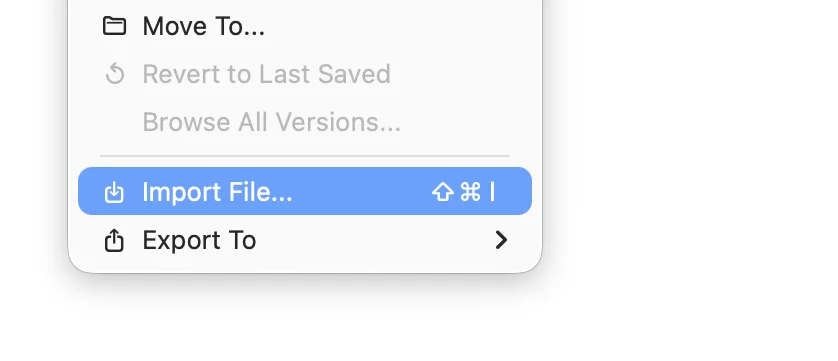
Select Import File… in File menu and select a file format. The contents of this file are added to the HTTP message history of the currently open document. Use shift-command-i keyboard shortcut to quickly open the file selection dialog.
Exporting files
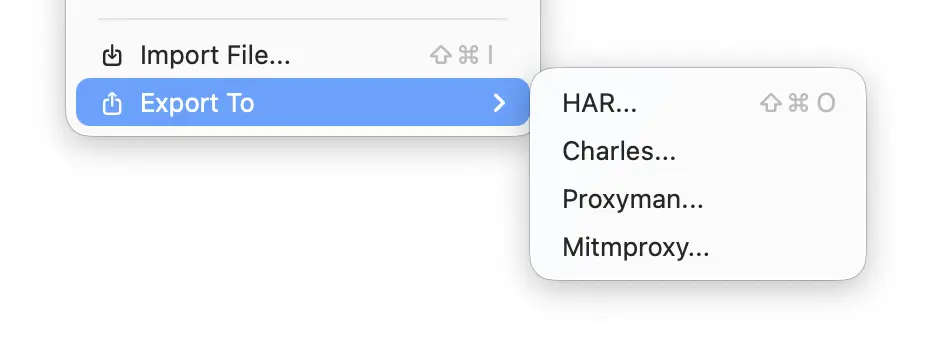
Under Export To select a file format to export all HTTP messages in the message history. The exported file can then be opened in another application. Keyboard shortcut shift-command-o opens the HAR export dialog directly.
Export specific messages that have been selected in message history by using the context menu options.

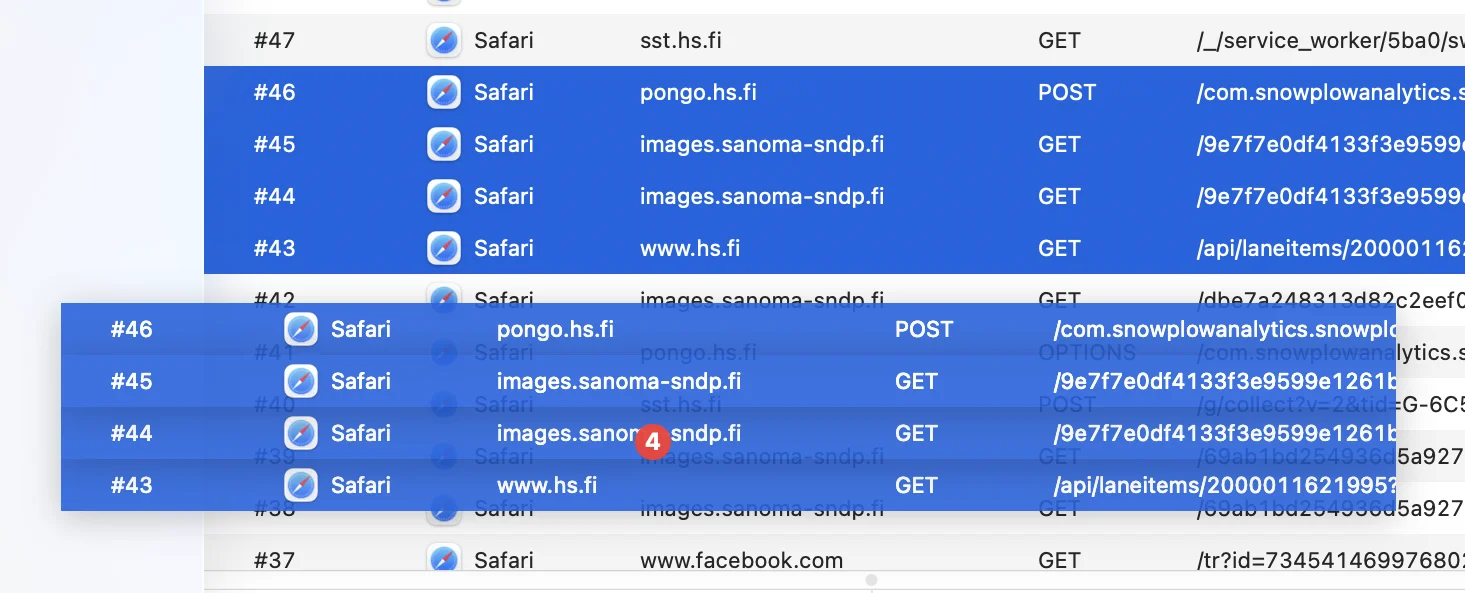
You can also drag and drop selected messages to desktop to export them to a HAR file.
Import and export from iOS app
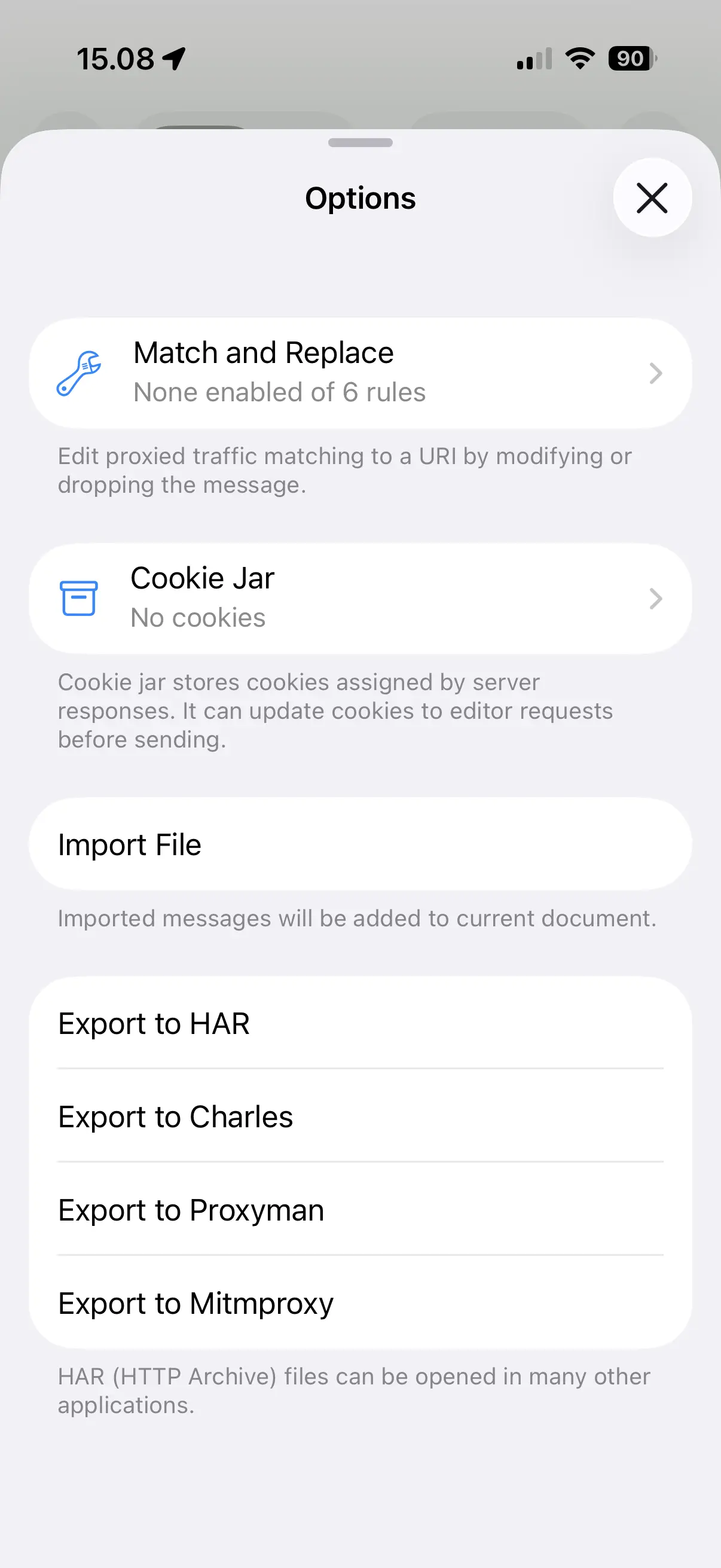
In Proxygen iOS app, import a file by opening Options and tapping Import File. Its contents are added to the current document. Export all HTTP messages to a file by selecting one of the exporting options.