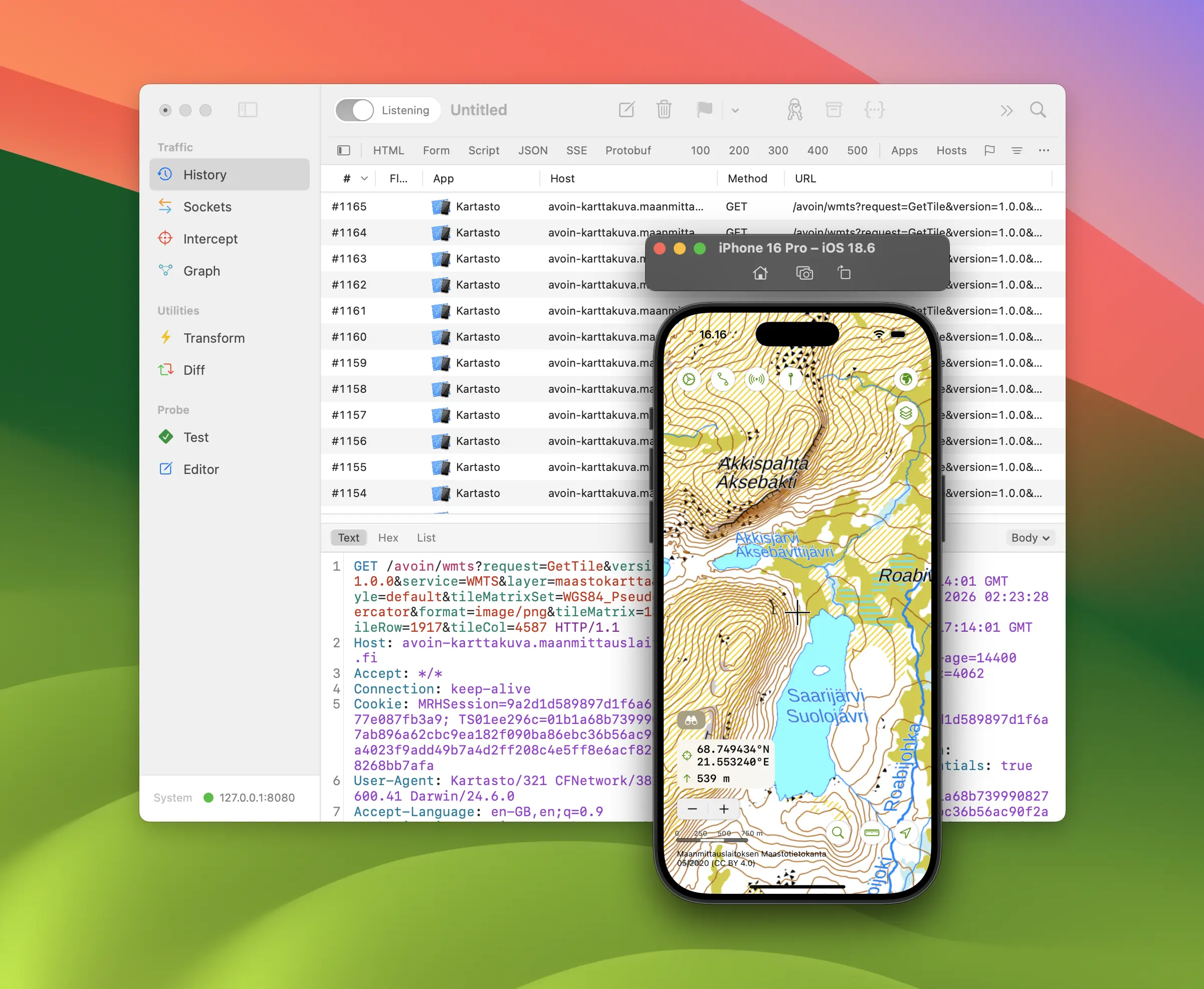
Many iOS developers are faced with the same challenge. Your app is running in the Simulator and a request is not doing what it should: the response is not what you expected, a call fires twice on launch, an endpoint returns a 400 with an empty error body. What you cannot do is see what actually went over the wire.
Proxygen captures HTTPS traffic from apps running in the iOS Simulator, with one click to install and trust its certificate. It is a native HTTP debugging proxy for Mac, iPhone and iPad, sold as a one-time purchase.
Initial setup
The first time you launch Proxygen, a setup window does the groundwork for you. It installs the Proxygen CA certificate into your login keychain and trusts it, then installs a small privileged helper tool. The helper keeps your Mac’s system HTTP and HTTPS proxy pointed at Proxygen’s listener whenever proxying is enabled, and restores your earlier settings when the app quits.
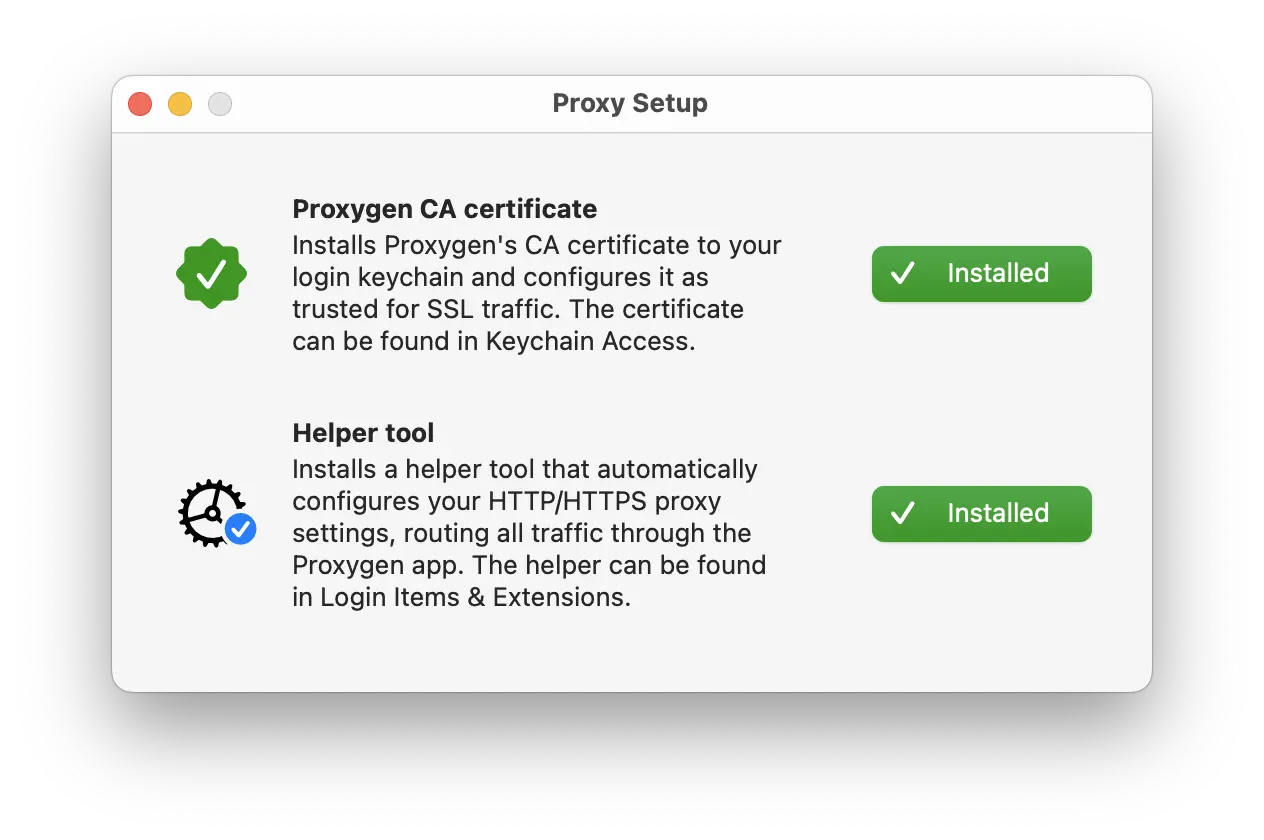
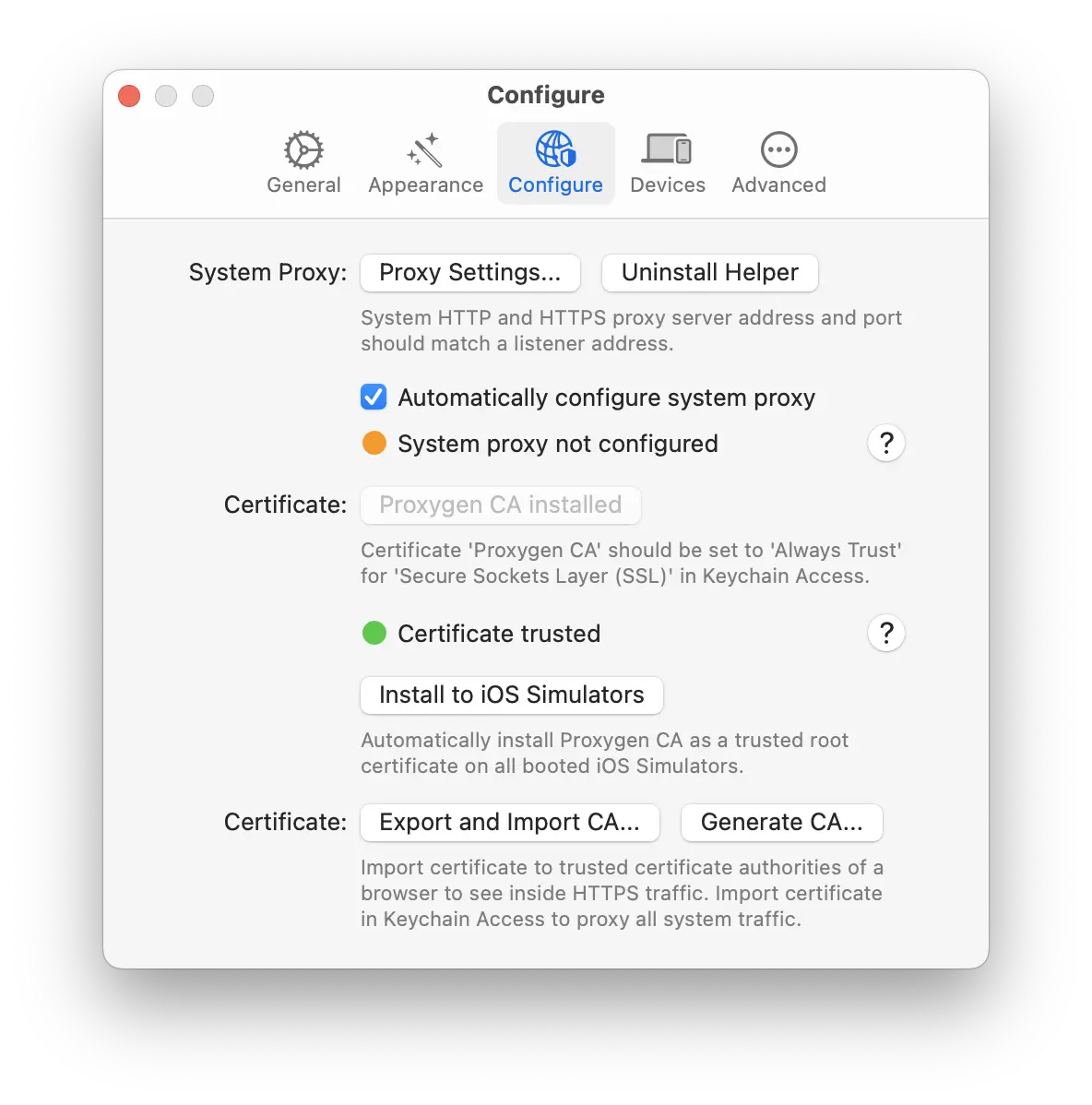
This removes the two steps that are usually the fiddliest to get right. You can revisit any of it later in Preferences → Configure, where the certificate and system proxy indicators show current state and Proxy Settings opens the Proxies section of your network interface if you would rather manage it by hand. The details are in Configure Options. The setup window and helper tool are part of the direct download version.
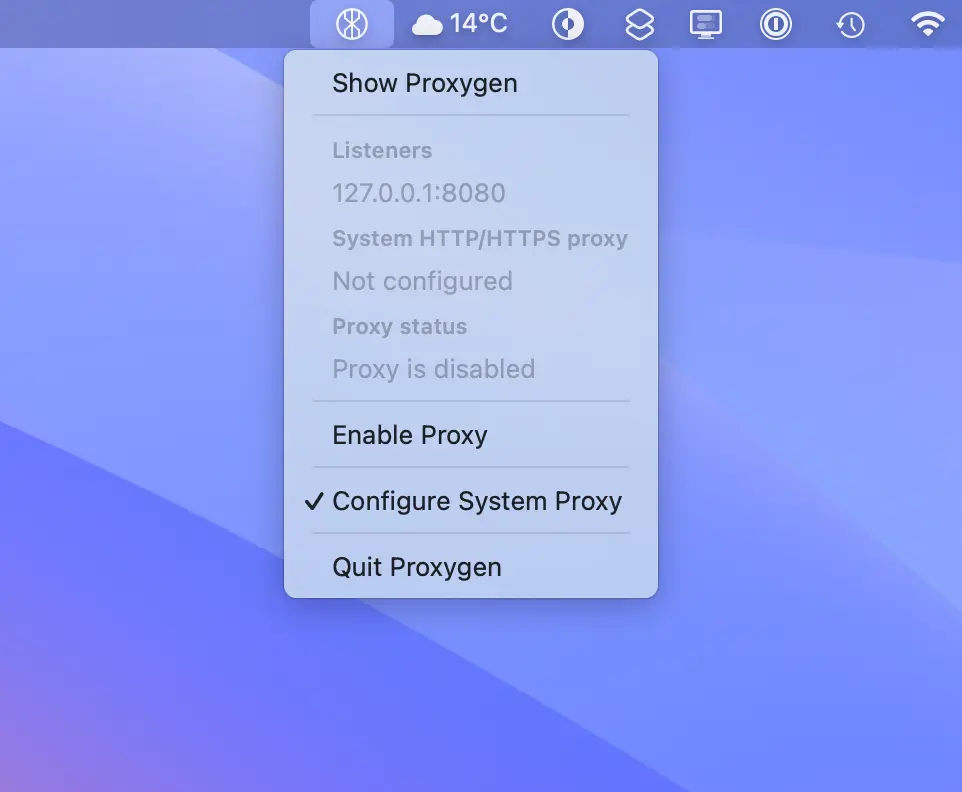
Proxygen’s menu bar item provides quick access to useful information: the addresses of your listeners, whether the system HTTP/HTTPS proxy is currently pointed at Proxygen, and whether the proxy is running. Configure System Proxy toggles the automatic system proxy configuration on and off, which is handy when you want the Simulator talking to the network directly for a moment.
Trust the certificate in the Simulator
Your Mac trusting Proxygen’s certificate is not the same as the Simulator trusting it. This is the step that turns most Simulator guides into a list of simctl commands or a walk through Settings → General → About → Certificate Trust Settings inside each Simulator you happen to be running.
Proxygen does it in one click. In Preferences → Configure, click Install to iOS Simulators and the Proxygen CA is installed as a trusted root in every booted Simulator. Boot another one later and click it again. The only requirement is that the Simulators are running at the time.
Simulators use the Mac’s own network stack, so there is nothing else to configure: no Wi-Fi proxy settings to edit as there would be on a physical device, no IP address to type in. Your app’s traffic starts arriving.
Decide what gets decrypted
Because your system HTTP proxy points at Proxygen, every app on the Mac routes through the proxy. This does not mean everything needs to end up in your document. Configure what gets captured in the TLS Proxy window.
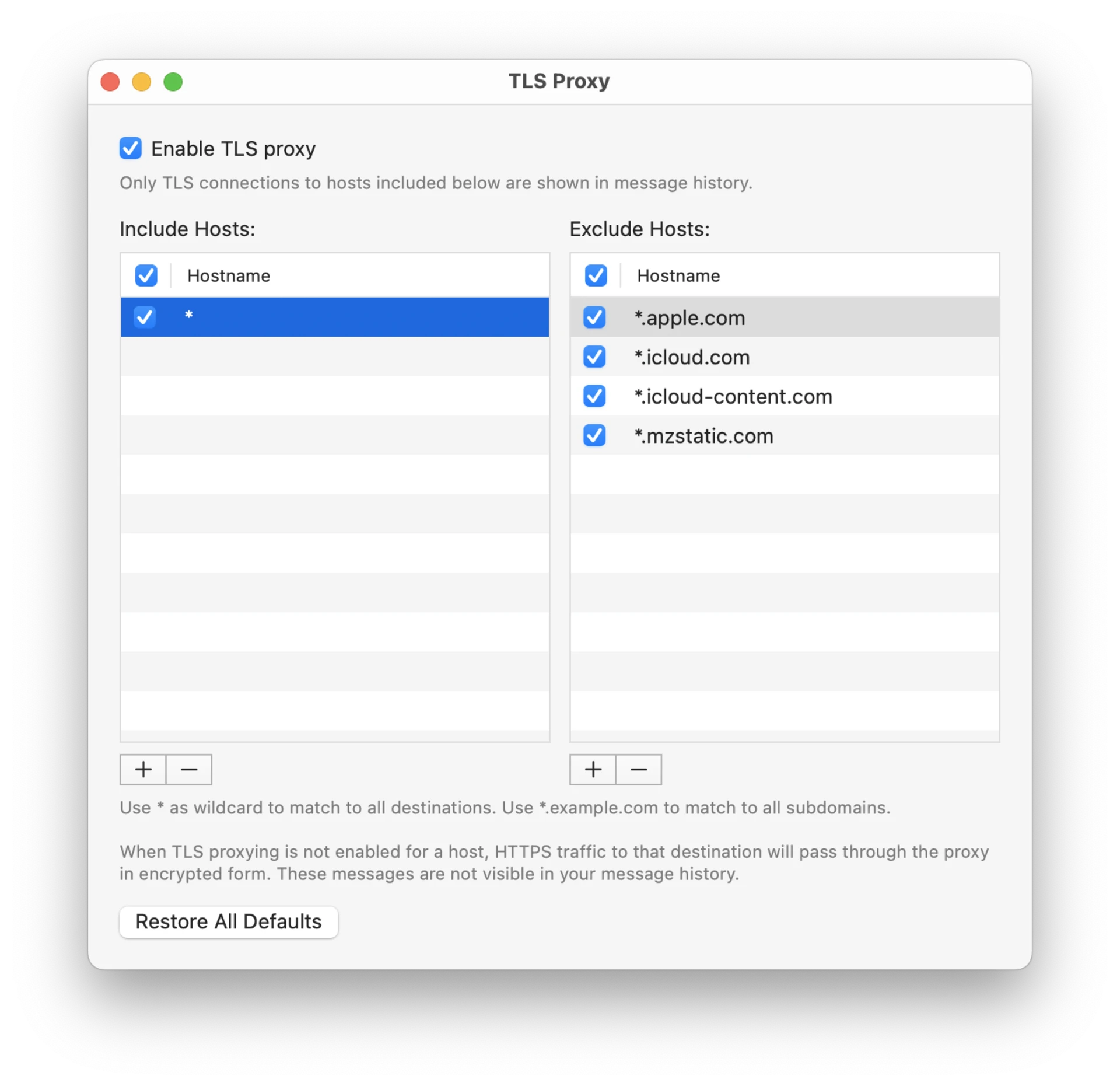
Proxygen ships with Any App and Any Host enabled, so everything is decrypted and you see all traffic by default. Narrow it down by disabling these entries and adding the app you are working on or the hosts it talks to. Traffic excluded by your TLS proxy configuration passes through the proxy in encrypted form without getting saved to the open document.
Worth knowing: app matching works for apps in the Simulator because they run on your Mac, where Proxygen can see which process opened each connection. A physical iPhone proxied over Wi-Fi arrives with no app identity and matches only the * entry, so per-app rules do not apply to it. The Simulator gives you a level of control that device debugging cannot.
Filter traffic to your app
Proxygen looks up the app behind every connection and shows it in the App column, so a request from your app running in the Simulator is labeled with the app’s own name rather than arriving as anonymous traffic from your Mac.
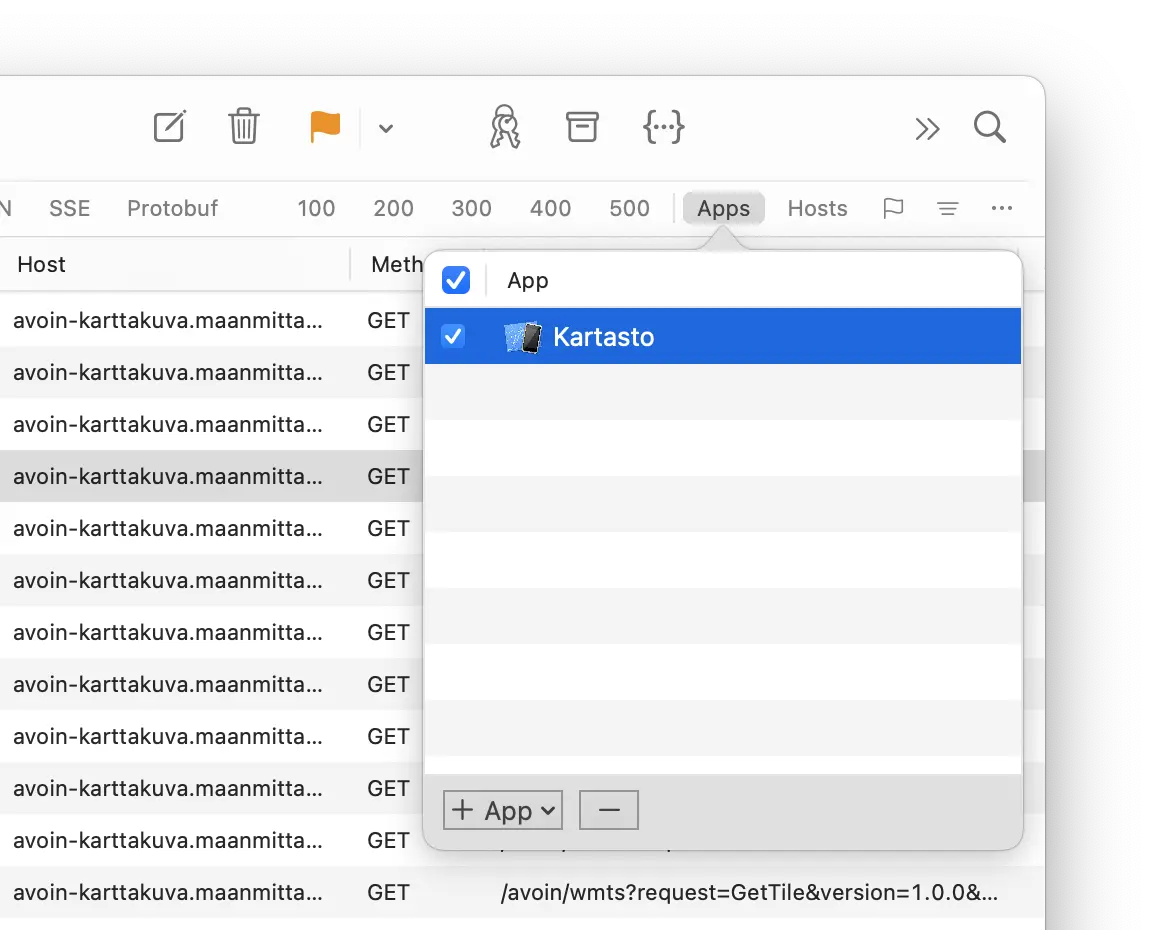
From there, narrowing down is quick:
- The Apps popup in the filter bar limits the list to the apps you pick.
- command-y filters instantly to the app of the selected message, the fastest way to go from one interesting request to only that app’s traffic.
- When you need finer control, Filter rules combine app matching with host, path, method, status and content type. Filter configurations can be saved and reapplied.
Make use of the built-in tooling
You typically want to perform further analysis on the message contents. Everything captured from the Simulator feeds the rest of the app:
| Tool | Action |
|---|---|
| Editor | Repeat a request with an edited method, headers or body |
| Intercept | Stop a request or response on the fly and edit it |
| Rewrites | Return a canned response, redirect a host, or drop a request |
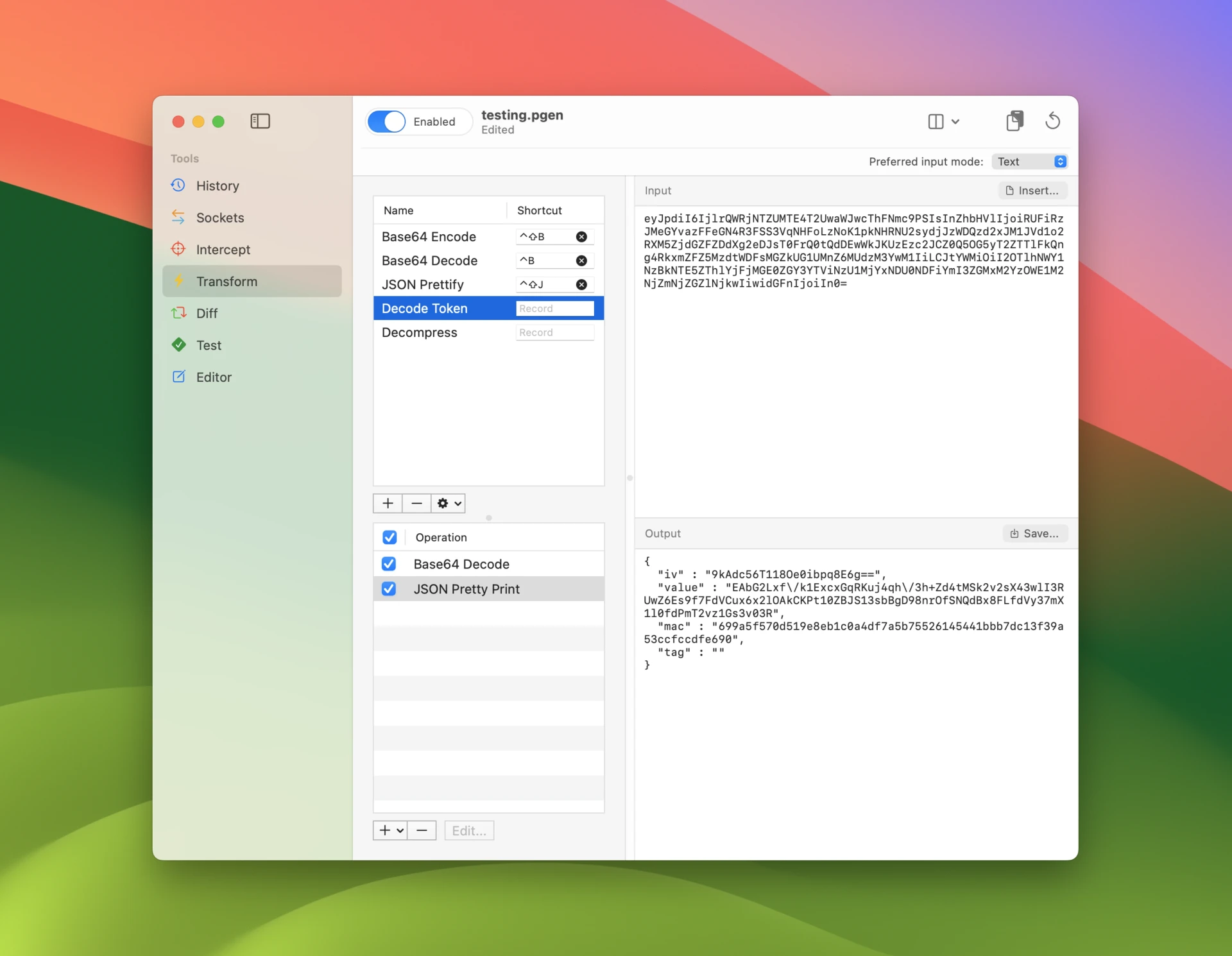
| Transform | Decode Base64, gzip, protobuf and other layered encodings |
| Diff | Compare a working request against one that fails |
| Test | Run a collection of API requests with assertions |
| Sockets | Watch WebSocket and SSE channels |
Testing error paths is a daily chore. Rather than asking the backend team for a 500 error response, add a Rewrite rule that answers the matching request with exactly the status and body you want, and watch how your app handles it.
Or take a response whose body just happens to be Gzipped, Base64 and URL encoded JSON, drop it into Transform, and have it magically appear as pretty printed text.
It works on the iOS device too
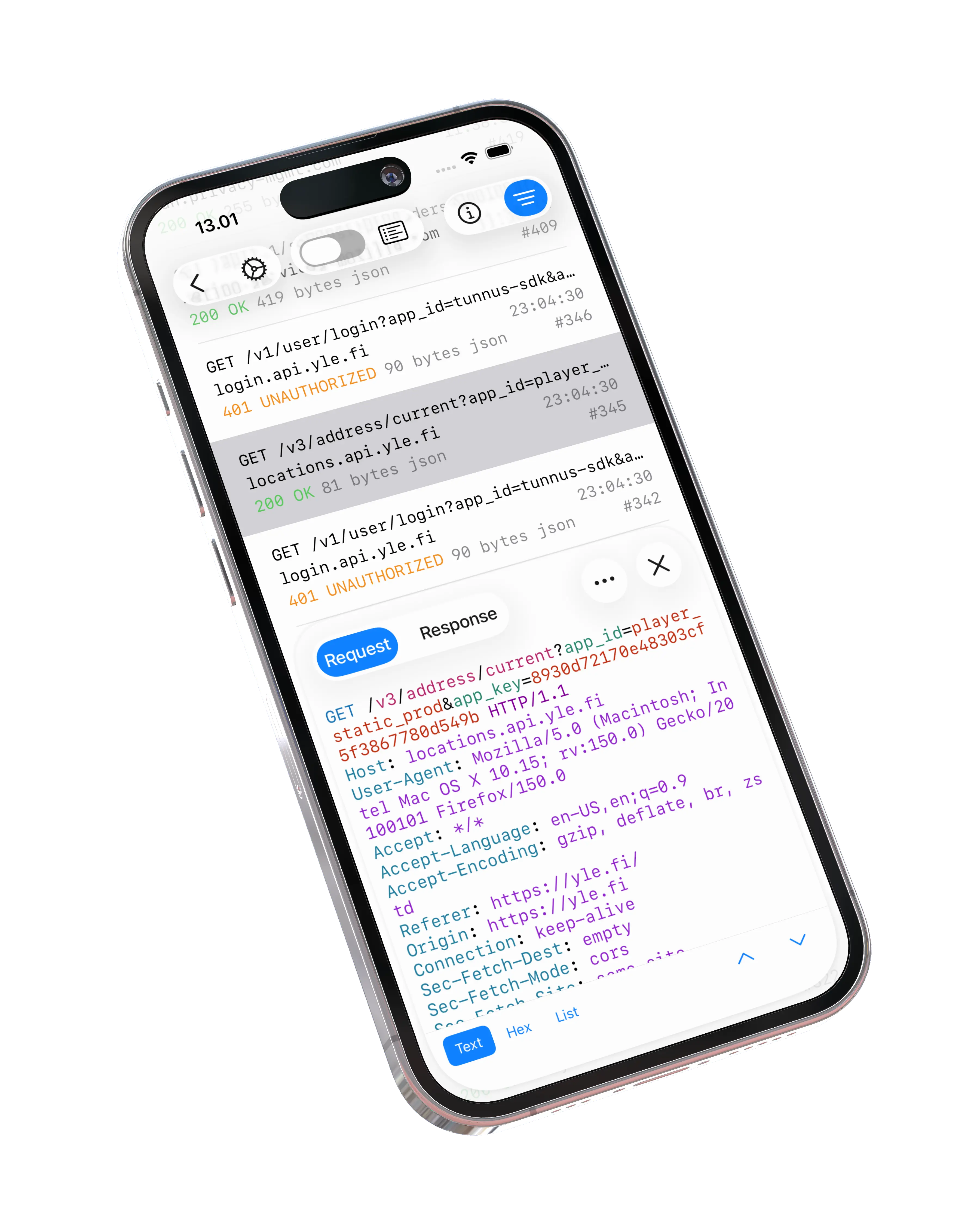
If you’d rather see your app running on actual hardware, or you need to debug the app on the go, Proxygen for iOS runs the proxy on the iPhone itself and carries the same tools, and Send to Mac mirrors that capture to the Mac app in real time.

Try it out
The free trial is fully featured. Download Proxygen, let the proxy setup install the CA certificate and helper, install the certificate to iOS Simulators, and watch your app’s requests arrive labeled and ready to work with. Full documentation is at proxygen.app/docs.