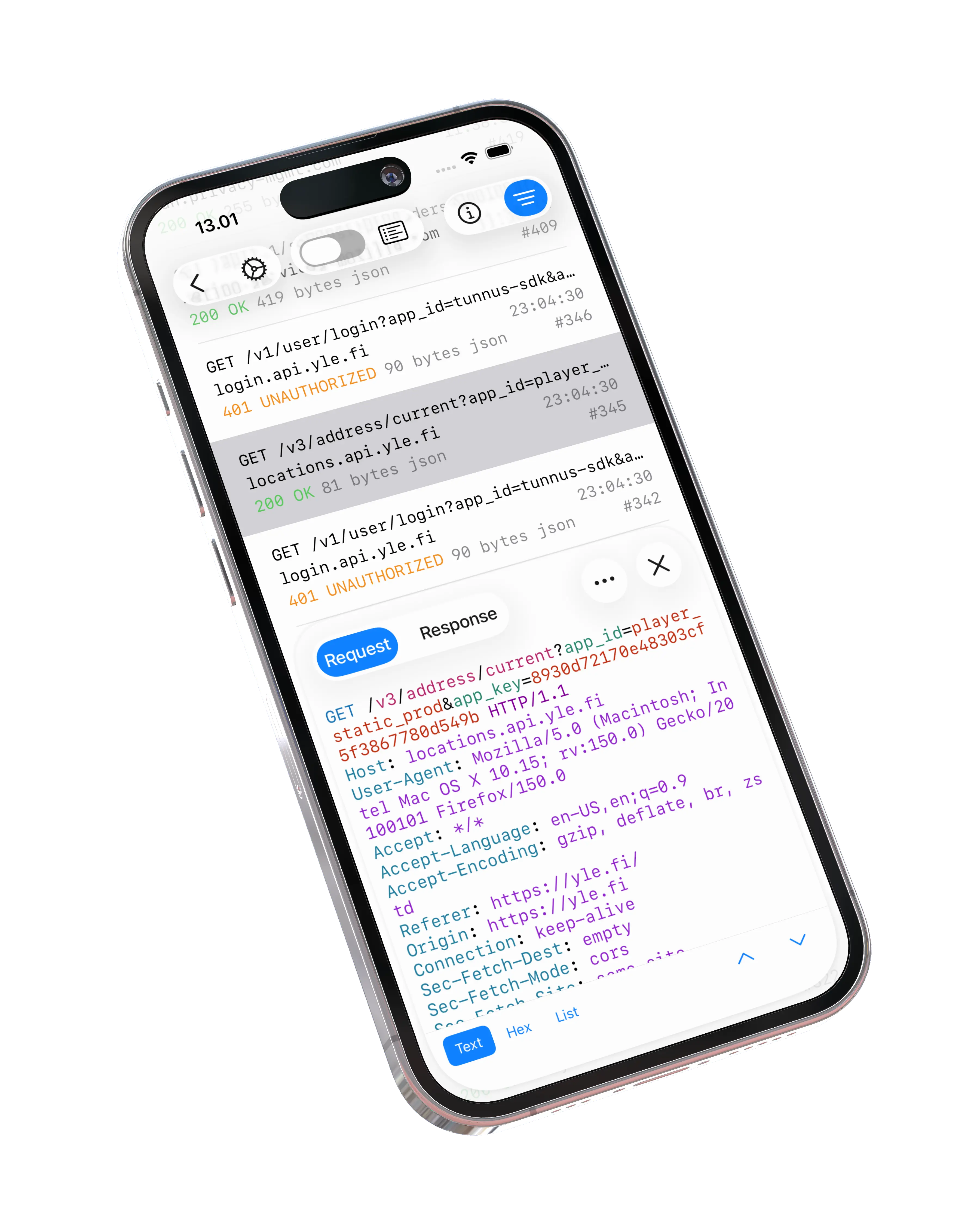
Sooner or later every iOS developer needs to see what an app actually sends over the network: which API calls fire on launch, what a misbehaving request looks like on the wire, or which third-party endpoints a dependency quietly talks to. The catch is that nearly all of that traffic is HTTPS, so a plain packet capture shows you nothing but encrypted bytes.
This guide shows how to inspect HTTPS traffic on an iPhone using Proxygen, capturing and decrypting it on the phone itself. No desktop proxy is involved, and no jailbreak.
Proxying via remote computer
The traditional setup for inspecting iPhone traffic runs a debugging proxy on a desktop machine: you start the proxy there, point your iPhone’s Wi-Fi settings at the computer’s IP address and port, install a CA certificate, and keep both devices on the same network. It works, but it tethers you to a desk, silently breaks when you switch networks, and leaves cellular traffic out entirely — the Wi-Fi proxy setting simply doesn’t apply on LTE or 5G.
How on-device capture works
Proxygen for iOS takes a different approach. It installs a VPN extension whose only job is to run a local HTTP proxy on the device itself — there is no VPN tunnel to any remote server, and captured traffic never leaves your iPhone. Because the extension keeps running while Proxygen is in the background, you simply use the app you are debugging and return to Proxygen to look at what was captured. And since the proxy sits inside the device rather than on your network, it sees traffic on Wi-Fi and cellular alike.
Step 1: Install the VPN extension
- Open app settings in Proxygen and tap Install Proxy.
- Tap Install VPN Extension and enter your passcode to add the VPN configuration.
- Tap Activate VPN to enable it.
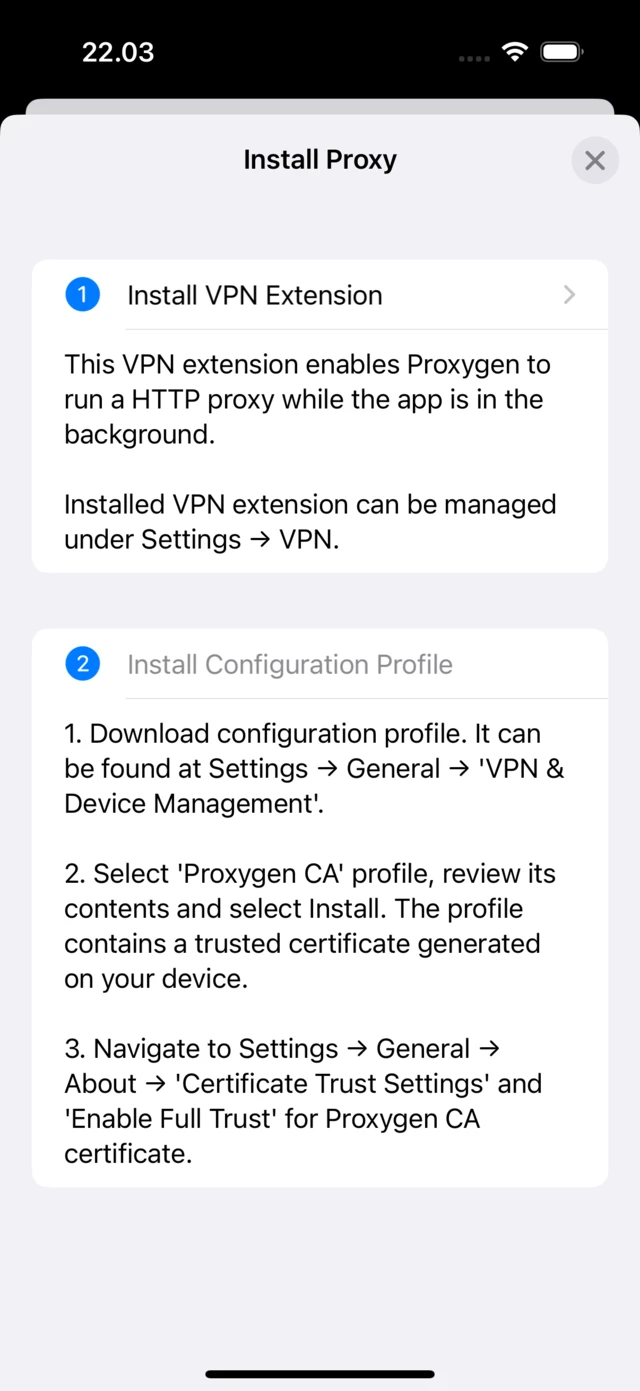
Step 2: Trust the CA certificate
Decrypting HTTPS requires the device to trust a Proxygen certificate authority:
- Tap Install Configuration Profile, which opens Safari and downloads a profile containing the Proxygen CA certificate.
- Install the downloaded profile under Settings → General → VPN & Device Management.
- Enable full trust for the Proxygen CA root under Settings → General → About → Certificate Trust Settings.
The full walkthrough with screenshots is in Installing Proxy.
Step 3: Start capturing
Enable the proxy with the toggle in Proxygen’s top toolbar, then move the app to the background and use the app or website you want to inspect. When you return to Proxygen, the captured requests are waiting in the History tool — request method, host, response status and content type for every message, with the full decrypted request and response one tap away.
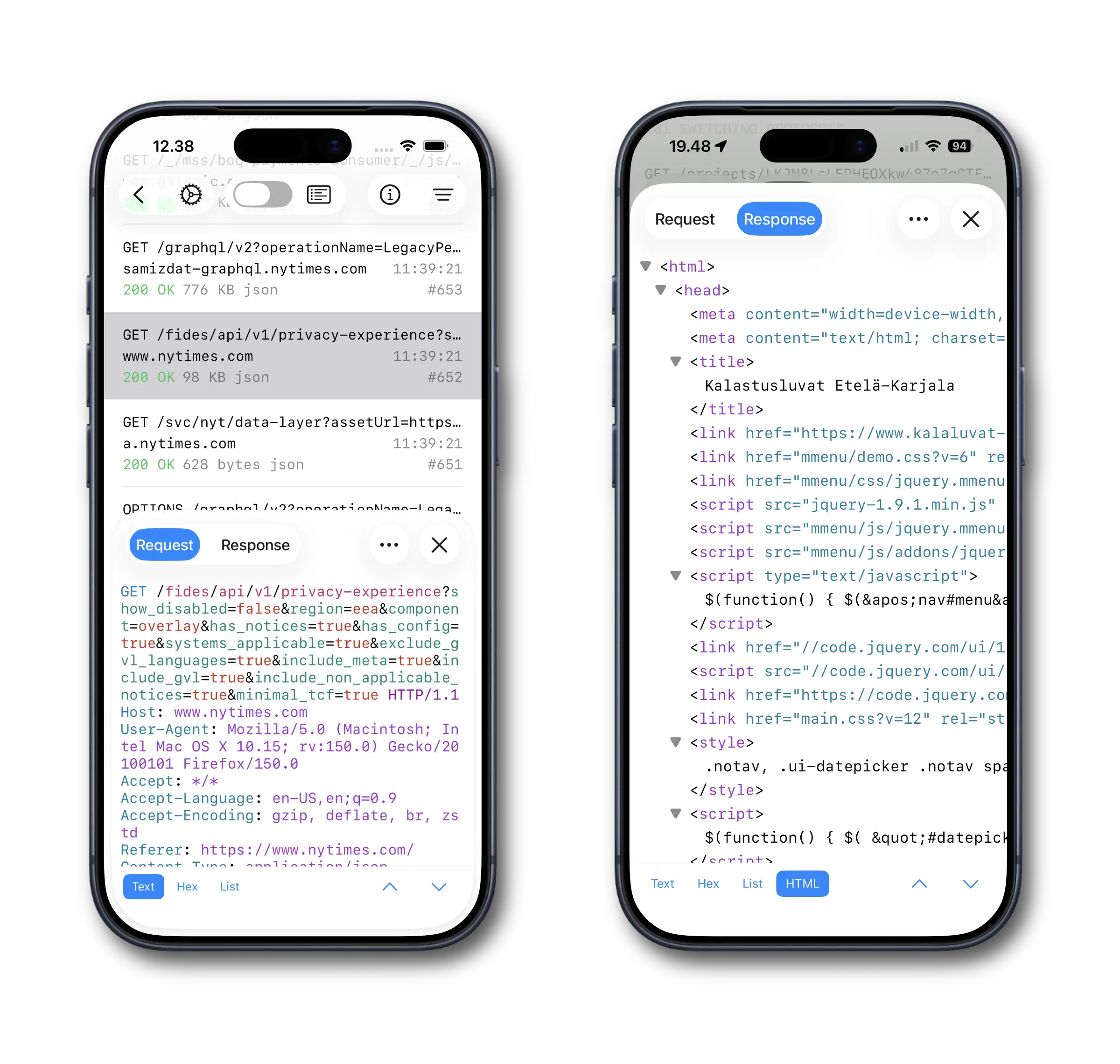
A busy phone produces a lot of traffic, so narrowing things down matters: filter by host straight from a message’s context menu, set flags on interesting messages, or attach notes to findings you want to keep. Swipe gestures flag, copy and delete messages without leaving the list.

Know the limitations
Some apps use certificate pinning and refuse connections through any TLS-intercepting proxy — their traffic shows up as failed handshakes rather than readable requests. This is true of every debugging proxy, on-device or not. Apps you build yourself, most third-party apps and everything in Safari work fine.
Go beyond monitoring
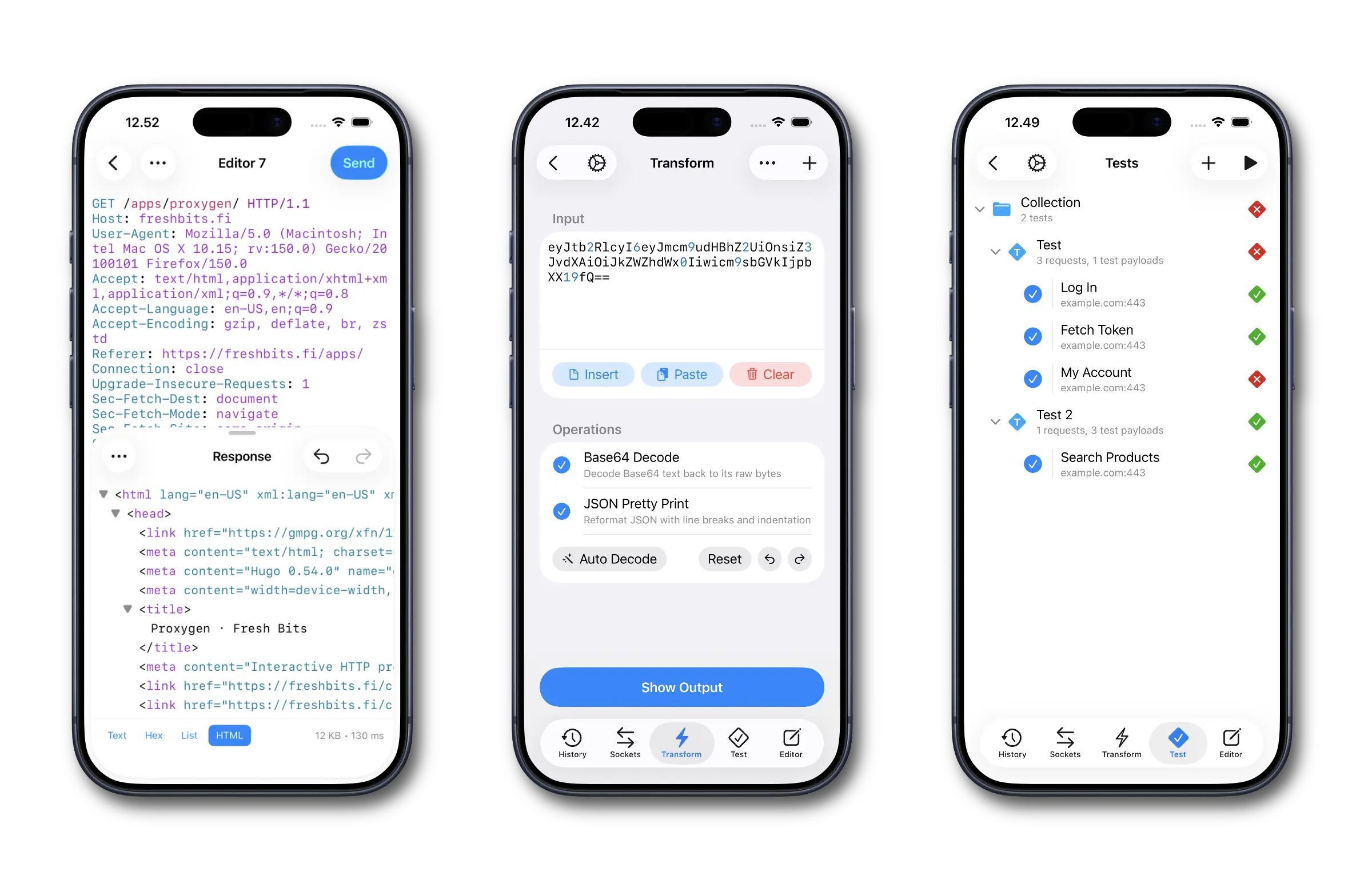
Capturing is only the start — the iOS app carries the same tools as Proxygen for Mac:
- Rewrites answer matching requests with a custom response, edit headers and bodies on the fly, or drop requests entirely — useful for testing how your app handles error responses or malformed data, right on the phone.
- Editor replays any captured request against the server, with editable method, headers and body, so you can poke at an API from the device where the bug lives.
- Transform decodes Base64, gzip, protobuf and other layered encodings straight from a captured message.
- Test runs collections of API requests with assertions, entirely on the device.
Mirror iOS traffic to the Mac
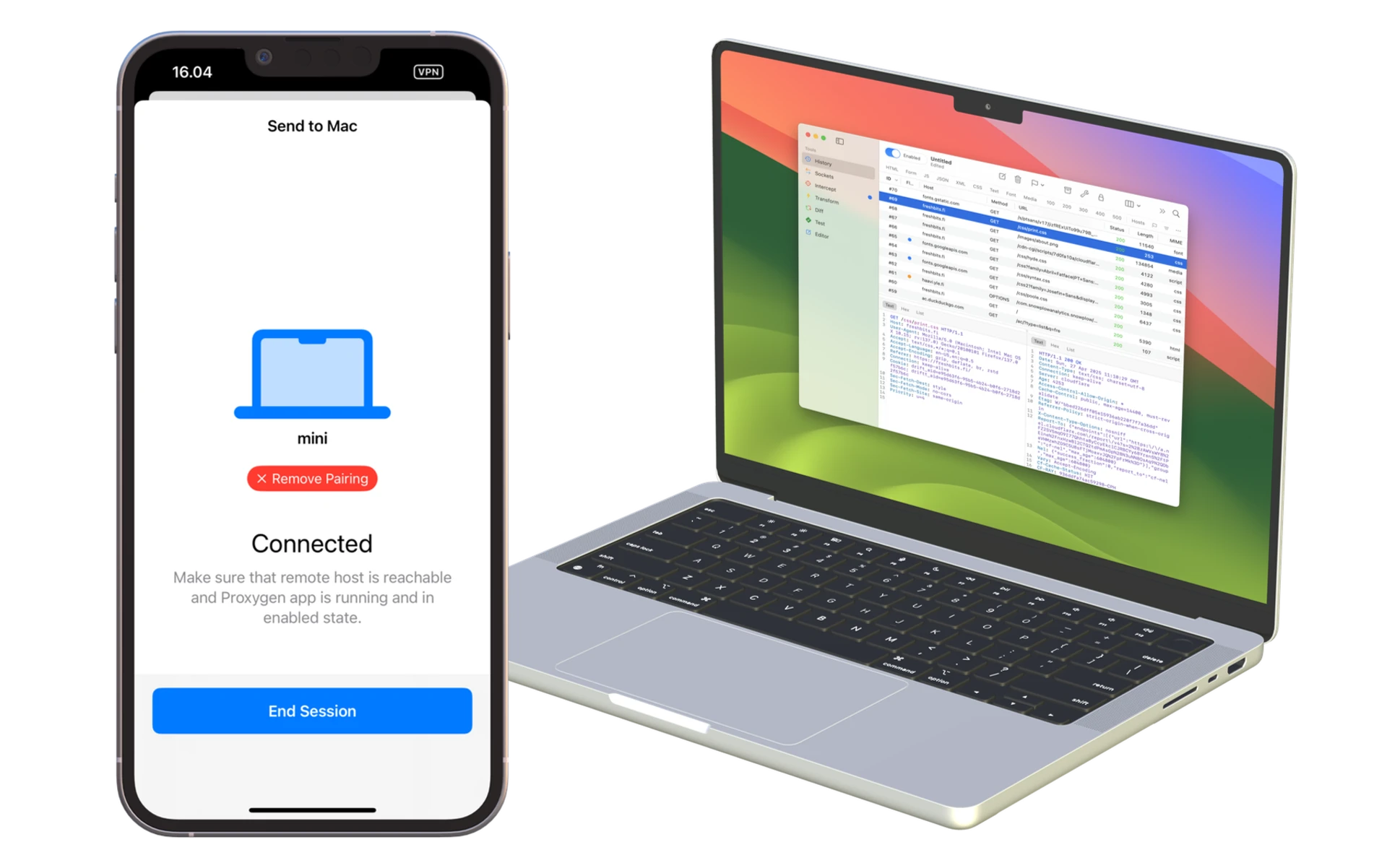
For longer sessions a bigger screen wins. Send to Mac pairs the iPhone with Proxygen for Mac and mirrors captured traffic there in real time over the local network — you tap through the app on the device while requests stream into the Mac app. Both apps save to the same PGEN document format, so a capture that starts on the phone can be reopened on the Mac later.
Getting data out
Captured traffic exports to HTTP Archive (.har) files that browser developer tools and most HTTP tooling understand, and Proxygen also reads and writes Charles, Proxyman and mitmproxy session formats — see Import and Export. A capture made on the phone is never locked in.
Try it out
Proxygen for iOS is a free download with a fully featured trial, unlocked with a one-time purchase — no subscription. Install it, set up the proxy in a couple of minutes, and see what your apps are really saying to the network.